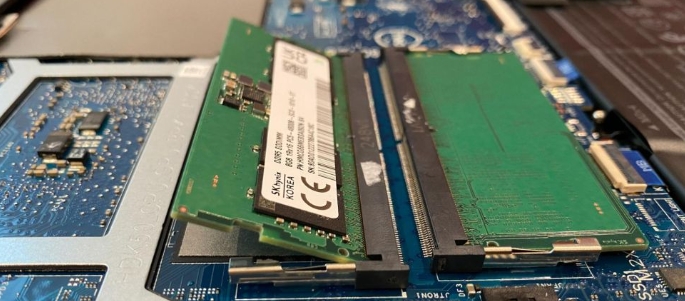
Laptop RAM Upgrade Compatibility Guide: Everything You Need to Know Before Upgrading
If your laptop feels slow when opening multiple applications, switching browser tabs, attending online meetings, or running demanding software, a RAM upgrade could be the simplest and most cost-effective solution. In this guide, you will learn what RAM is, how RAM affects performance, how to check your laptop’s RAM compatibility, how much RAM you need, whether your laptop can be upgraded, and common mistakes to avoid. By the end of this article, you will know exactly which RAM upgrade is suitable for your laptop and whether the upgrade is worth the investment.
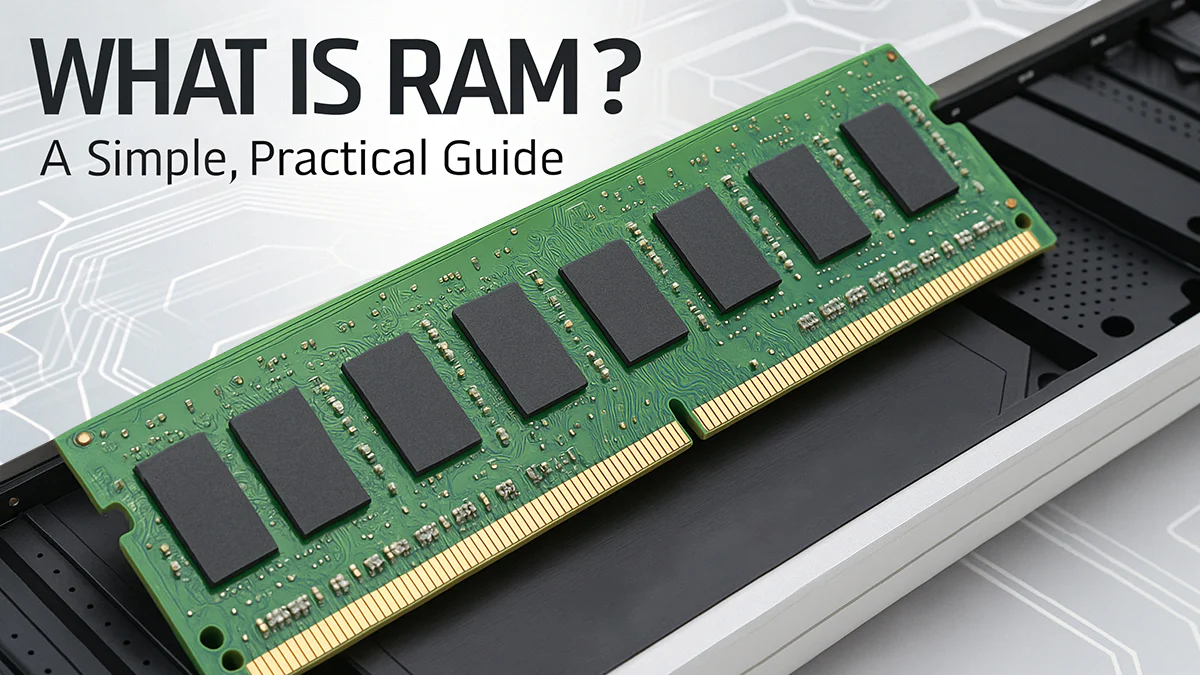
What Is RAM and Why Is It Important?
RAM (Random Access Memory) is the short-term memory of your computer. It temporarily stores data that your processor needs to access quickly.
Think of RAM as your laptop’s workspace.
The larger the workspace, the more tasks your laptop can handle simultaneously.
When RAM is insufficient, your laptop starts using the storage drive as temporary memory. This process is much slower and often causes lag.
Common signs that you need more RAM include:
- Slow application launches
- Browser tabs freezing
- Delays when multitasking
- Frequent system hangs
- Slow performance during video calls
- Reduced performance when editing photos or videos
How Much Difference Does More RAM Make?
Many users are surprised by how much smoother a laptop becomes after a RAM upgrade.
4GB RAM
Suitable for:
- Basic web browsing
- Microsoft Office
Limitations:
- Slow multitasking
- Limited browser tabs
- Struggles with modern software
8GB RAM
Suitable for:
- Students
- Office work
- Online classes
- Streaming
Advantages:
- Smooth multitasking
- Better browser performance
- Improved responsiveness
16GB RAM
Suitable for:
- Professionals
- Programmers
- Graphic designers
- Heavy multitaskers
Advantages:
- Excellent performance
- Multiple applications running simultaneously
- Better productivity
32GB RAM and Above
Suitable for:
- Video editors
- Engineers
- 3D designers
- Virtual machine users
Advantages:
- Handles demanding workloads
- Future-proof solution
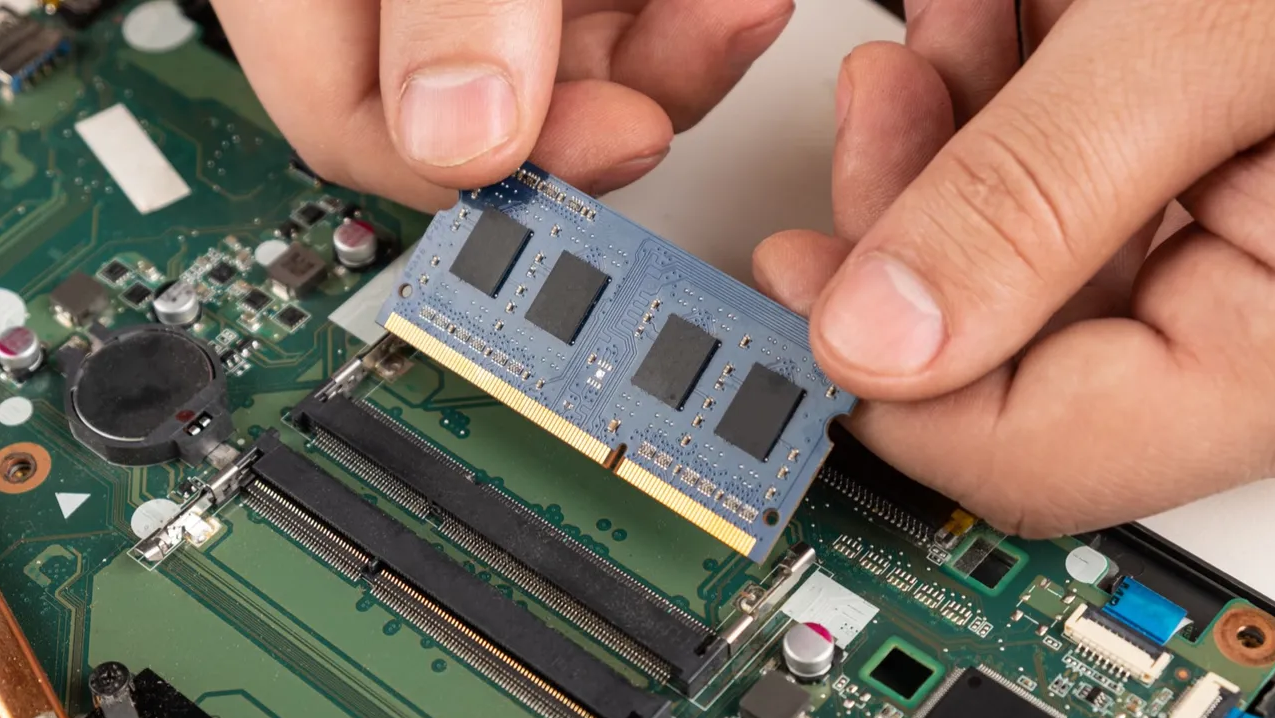
How to Check If Your Laptop RAM Can Be Upgraded
Not every laptop supports RAM upgrades.
Some modern laptops have RAM permanently soldered to the motherboard.
Before purchasing RAM, check the following:
Method 1: Check Manufacturer Specifications
Search for your exact laptop model online.
Example:
- HP EliteBook 840 G10
- Lenovo ThinkPad T14 Gen 4
- Dell Latitude 5440
Review the specifications page for upgrade options.
Method 2: Check Windows System Information
Press:
Windows Key + R
Type:
msinfo32
Press Enter.
This provides basic information about your system.
Method 3: Use Hardware Detection Software
Programs such as CPU-Z or Crucial System Scanner can identify:
- RAM type
- Number of memory slots
- Current RAM capacity
- Maximum supported RAM
Understanding RAM Compatibility
This is where most upgrade mistakes happen. Not all RAM modules are compatible with every laptop. You must consider:
RAM Generation
Common laptop RAM generations include:
- DDR3
- DDR4
- DDR5
These are not interchangeable.
A DDR4 laptop cannot use DDR5 RAM.
RAM Speed
Examples:
- DDR4 2400MHz
- DDR4 2666MHz
- DDR4 3200MHz
- DDR5 4800MHz
Using incompatible speeds may reduce performance or prevent booting.
Form Factor
Laptops use:
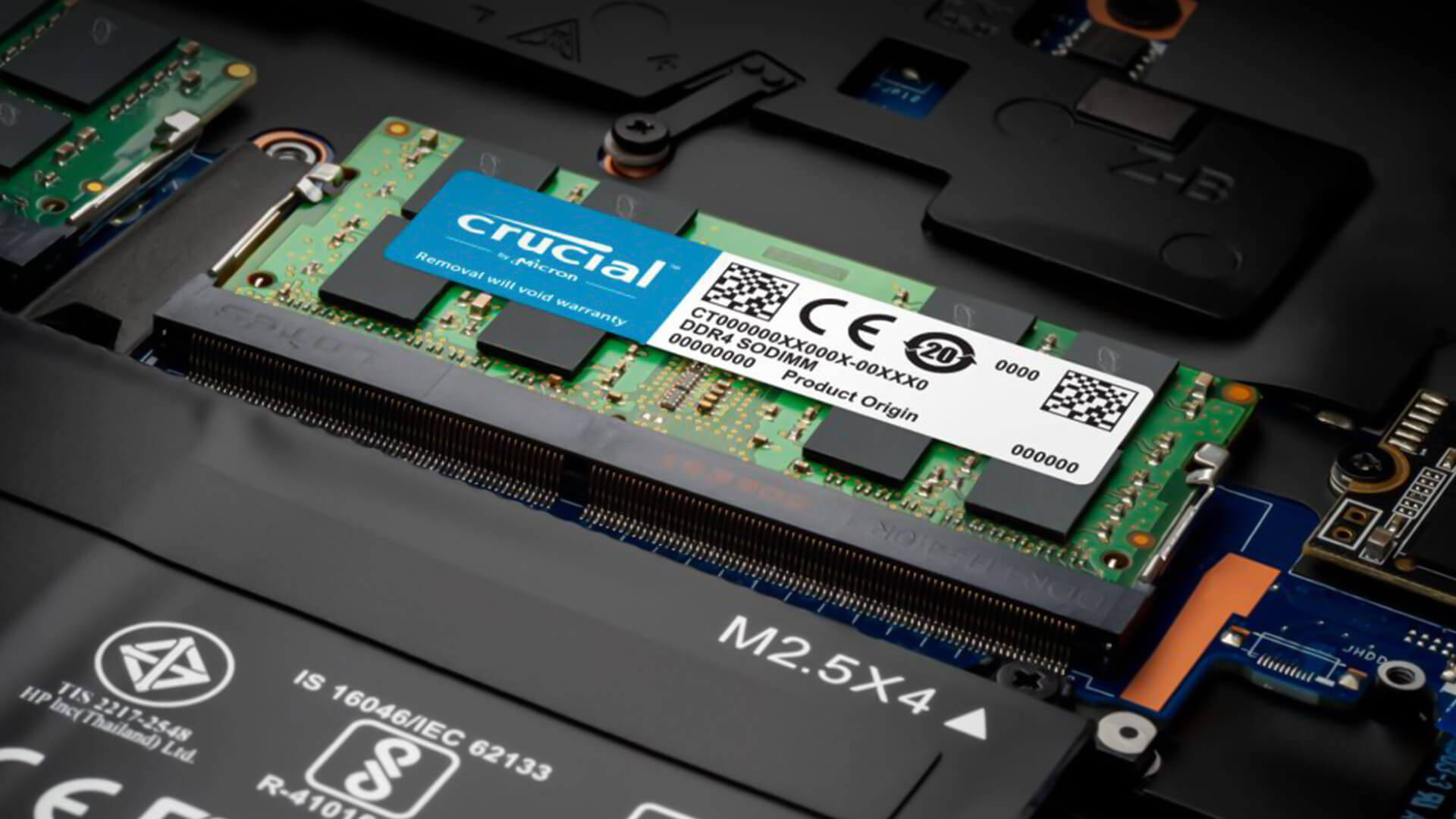
SO-DIMM RAM
Desktops use:
DIMM RAM
Always buy laptop-specific memory modules.
How to Find Your Laptop’s Maximum RAM Capacity
Every laptop has a maximum RAM limit.
Examples:
| Laptop Model | Maximum RAM |
|---|---|
| HP ProBook 450 G8 | 32GB |
| HP EliteBook 840 G10 | 64GB |
| Lenovo ThinkPad T14 | 64GB |
| Dell Latitude 5440 | 64GB |
Always verify your exact model before purchasing.
Single Channel vs Dual Channel RAM
Many users overlook this important factor.
Single Channel
Example:
- One 8GB RAM stick
Dual Channel
Example:
- Two 8GB RAM sticks
Dual-channel configurations can improve performance because the processor accesses memory more efficiently.
For best results:
- 8GB = 2 x 4GB
- 16GB = 2 x 8GB
- 32GB = 2 x 16GB
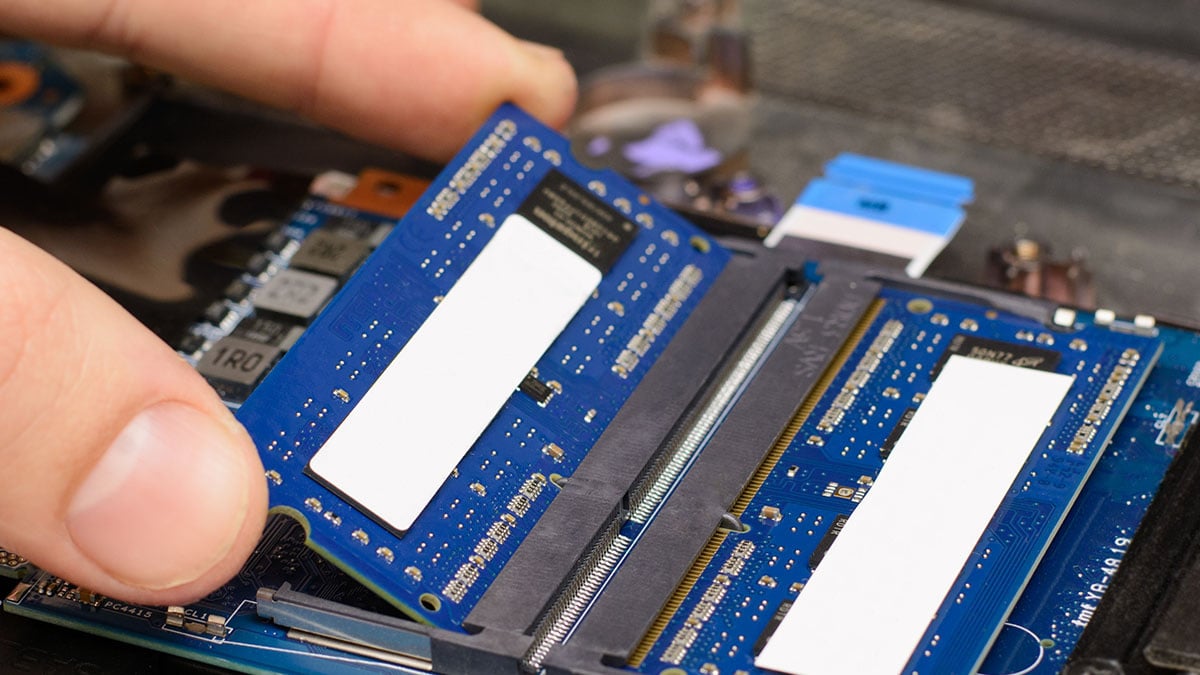
Is Upgrading RAM Better Than Upgrading to an SSD?
The answer depends on your current system.
If You Still Use a Hard Drive (HDD)
Upgrade to an SSD first. The performance improvement will be dramatic.
If You Already Have an SSD
A RAM upgrade may provide the biggest performance gain.
The ideal combination is:
SSD + 8GB RAM minimum or SSD + 16GB RAM for professional users
Common RAM Upgrade Mistakes
Avoid these mistakes:
Buying the Wrong RAM Type
Always confirm whether your laptop uses DDR3, DDR4, or DDR5.
Ignoring Maximum Capacity
A laptop that supports 16GB cannot reliably use 32GB.
Mixing Incompatible Modules
Different speeds and capacities may create instability.
Forgetting BIOS Limitations
Some older laptops have restrictions that affect RAM upgrades.
Frequently Asked Questions
Can I Mix Different RAM Sizes?
Yes, but identical modules usually deliver the best performance.
Will More RAM Make My Laptop Faster?
Yes, especially if your current RAM usage is frequently reaching its limit.
Is 8GB RAM Enough in 2026?
For most students and office users, yes. For professionals and heavy multitaskers, 16GB is recommended.
Is 16GB RAM Worth It?
Absolutely. For most users, 16GB offers the best balance between performance and cost.
Can I Upgrade RAM Myself?
In many laptops, yes. However, some ultrabooks and premium models have soldered memory that cannot be upgraded.
Final Thoughts
A RAM upgrade is one of the most affordable ways to improve laptop performance. Before purchasing memory, always verify your laptop’s RAM type, maximum capacity, number of memory slots, and supported speeds. In most cases, upgrading from 4GB to 8GB or from 8GB to 16GB can significantly improve responsiveness, multitasking, and overall productivity.