Why Is My Laptop Running Slow? 15 Proven Ways to Speed It Up Without Buying a New One.
We have all been there. You are in the middle of a tight deadline, finalizing an export budget in Excel, or trying to join an urgent online meeting, and suddenly – the dreaded loading wheel appears. Your cursor freezes, your laptop fans start screaming like a matatu on the Thika Superhighway, and a simple task takes ten minutes.
When your laptop is running slowly, it is easy to assume that it has reached the end of its life. With new models constantly flooding the market, retailers want you to believe that buying a brand-new machine is your only option. But in 2026, tech hardware is more resilient than ever, and a slow computer rarely means it is time for the scrap heap.
Before you dip into your savings or visit a shop in downtown Nairobi looking for an expensive replacement, take a breath. Most performance bottlenecks are caused by software clutter, unoptimized settings, hidden malware, or easily correctable physical dust.
This comprehensive laptop optimization guide walks you through 15 proven, practical, and completely free or low-cost ways to breathe fresh life into your machine. Whether you are dealing with a slow Windows laptop or a sluggish Mac, these laptop performance tips will get your device running at lightning speed once again.
Part 1: Why Is My Laptop So Slow? Understanding the Core Culprits
Before diving into the solutions, we need to understand what is happening under the hood. A laptop doesn’t slow down without cause. Performance lag is usually driven by three main issues: resource exhaustion, software conflicts, or physical constraints.
Here is a look at what forces a system to crawl:
-
Bloated Startup and Background Processes: Many applications automatically configure themselves to launch the moment your computer turns on. They sit silently in your system’s memory, fighting your active programs for CPU cycles.
-
Low Storage Room (The 15% Rule): Both Windows and macOS require a healthy amount of empty disk space to manage virtual memory (using storage space as temporary memory when RAM runs low). If your main drive has less than 15% free space, overall performance drops off a cliff.
-
The HDD Bottleneck: If your laptop still uses a traditional Mechanical Hard Disk Drive (HDD), it relies on moving magnetic platters to read data. Modern operating systems like Windows 11 are optimized for solid-state storage; running them on an old HDD is like forcing a sports car to drive through a mud track.
-
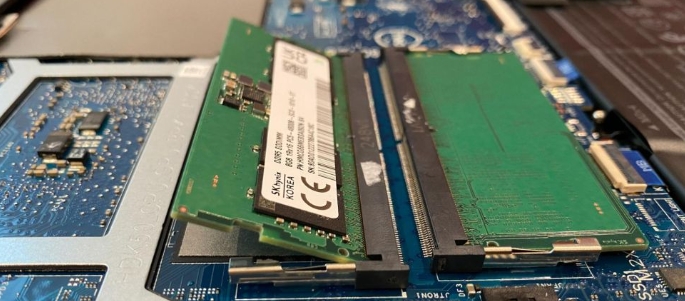
Insufficient RAM: If you have 4GB or even 8GB of RAM, opening multiple browser tabs alongside intensive software will cause your machine to choke.
-
Thermal Throttling: Laptops are compact. Over time, internal cooling fans pull in dust, lint, and hair. When internal components get too hot, your processor deliberately cuts its speed (known as thermal throttling) to prevent permanent hardware damage.
-
Malware and Crypto-Miners: Hidden malicious scripts can hijack your processor and network bandwidth to mine cryptocurrency or steal data, leaving nothing left for your daily tasks.
Part 2: Quick Diagnoses Using the Task Manager
Before tweaking anything, let’s find the exact culprit. Windows has an incredible built-in diagnostic tool called the Task Manager (on Mac, this is called the Activity Monitor).
How to Check Your Resource Usage:
-
Press Ctrl + Shift + Esc simultaneously to open the Task Manager.
-
Click on the Processes tab, then look at the column headers: CPU, Memory (RAM), and Disk.
-
Click any of these headers to sort the applications by resource consumption.
If your CPU or Memory is consistently resting above 80% when you are not running major tasks, your system is heavily overloaded. If your Disk usage is stuck at 100%, your storage drive is failing or overwhelmed by background operations.
Part 3: 15 Proven Ways to Speed Up Your Slow Laptop
Follow these steps sequentially. We will start with immediate, free software tweaks and gradually move toward deeper optimization techniques.
1. Give Your Laptop a Clean Restart
It sounds incredibly basic, but closing the lid of your laptop at night is not the same as turning it off. When you leave a laptop in sleep mode for weeks, temporary system logs, memory leaks from apps, and cached background processes accumulate. A full, proper restart purges the system memory (RAM), flushes temporary caches, and finalizes pending software updates.
-
Action: Click Start > Power > Restart. Do this at least twice a week.
2. Disable Demanding Startup Programs
One of the most effective solutions for how to speed up a slow laptop is trimming down your startup items. Programs like Spotify, Microsoft Teams, Adobe Creative Cloud, and browser assistants love to load during bootup, adding minutes to your startup time.

NOTE: Important Note: Never disable anything related to your security software, audio drivers (like Realtek), or wireless network drivers.
3. Clear Temporary Junk Files with Storage Sense
As you browse the web and use software, your laptop generates hundreds of temporary files, log entries, and installation caches. Over time, these files take up vital space needed by your operating system.
Instead of installing risky third-party cleaning tools, use the built-in Storage Sense:
-
Open Settings (Windows Key + I) and navigate to System > Storage.
-
Toggle on Storage Sense to allow Windows to clean up junk automatically.
-
Click on Temporary files. Wait for the scan to finish, select the files you want to delete (like Windows Update Cleanup and Temporary Internet Files), and click Remove files.
4. Uninstall Unused Applications and Bloatware
Brand-new laptops often ship with pre-installed trial software, casual games, and manufacturer utilities that you will never use. This is called bloatware.
-
Action: Go to Settings > Apps > Installed apps. Sort the list by size or click through to find programs you haven’t opened in months. Click the three dots next to them and hit Uninstall. This clears space and eliminates hidden background processes.
5. Change Your Power Plan to “Best Performance”
By default, laptops are configured to save battery power. This feature caps your CPU’s maximum speed to ensure your battery lasts longer when you are away from a wall socket. If your machine is constantly plugged into power at your home or office desk, this setting is holding you back.
- Search for Power, sleep and battery settings in the Start menu.
- Locate the Power mode dropdown menu.
- Change it from Balanced or Power Efficiency to Best performance.
Note: Keep in mind that this will drain your battery noticeably faster when you are disconnected from electricity.
6. Adjust Visual Effects for Maximum Speed
Windows 11 features beautiful, subtle animations, translucent window effects, and drop shadows. While visually appealing, these graphics require constant mathematical calculations from your processor and graphics card.
- Tap the Windows key, type Adjust the appearance and performance of Windows, and hit Enter.
- In the Performance Options window, select the option button for Adjust for best performance.
- Click Apply and then OK. Your interface will look slightly sharper and simpler, but the snappy, instant response of your windows will surprise you.
7. Toggle Off Background Apps
Many apps keep running processes active in the background even after you close their main windows. They continue to fetch updates, receive notifications, and eat away at your RAM.
-
Action: In Windows 11, navigate to Settings > Apps > Installed apps. For background-heavy apps (like social media or communication tools), click the three dots, choose Advanced options, and find Background apps permissions. Change the setting from Always or Power optimized to Never.
8. Run a Deep Security Scan for Malware
If your laptop was running fast yesterday but is unbearably sluggish today, it may have a malware infection. Malicious scripts can hide deep inside your system directory.
- Type Windows Security into your search bar and open the application.
- Select Virus & threat protection.
- Click on Scan options, select Full scan (which checks every single file on your system), and click Scan now. Let this run completely without opening other applications.
9. Pause or Optimize Windows Update Timing
Windows Updates are critical for security, but they have a habit of running at the worst times, heavily utilizing your disk drive and internet connection.
-
Action: Go to Settings > Windows Update. Set your Active hours so your computer knows not to download or install updates while you are working. If you are using a slow internet connection, toggle on Pause updates for 1 week until you are connected to a high-speed fiber or unlimited network.
10. Pause Cloud Synchronization (OneDrive, Google Drive, iCloud)
Cloud backup tools are incredibly helpful, but their constant file index checking and uploading can cripple local drive speeds, especially if you handle large media files or work on slow internet connections.
-
Action: Right-click your OneDrive or Google Drive icon in the bottom right corner of your taskbar. Go to settings and select Pause syncing for 2, 8, or 24 hours while you complete high-priority work.
11. Declutter Your Browser and Manage Active Tabs
Often, it isn’t the laptop itself that is slow – it is your web browser. Browsers like Google Chrome and Microsoft Edge are notorious memory hogs. If you keep 30 tabs open simultaneously, each tab functions as an independent software application inside your RAM.
-
Action: Close tabs you aren’t actively viewing. Use bookmark managers like Pocket or internal reading lists to save links for later. Additionally, review your Extensions/Add-ons and delete ad-blockers or productivity tools you no longer use; every active extension drains background power.
12. Defragment Your HDD (Or Optimize Your SSD)
If your laptop stores data on an older mechanical Hard Disk Drive, files become scattered across different physical locations on the drive’s spinning plates over time. This fragmentation forces the read head to work twice as hard.
-
Action: Type Defragment and Optimize Drives in the Windows search bar. Select your main C: drive. If it is an HDD, click Optimize to group your data closely together. If it is an SSD, the system will run a TRIM command, safely clearing out unused data blocks to maintain peak read speeds.
13. Reconstruct Virtual Memory (Paging File)
When physical RAM runs low, Windows allocates a portion of your storage drive to act as simulated memory, known as a Paging File. If this file size is managed incorrectly by the system, it can cause stuttering.
- Search for Advanced System Settings in the Windows Start bar.
- Under the Advanced tab, look for the Performance section and click Settings.
- Move to the Advanced tab inside the new window, and under Virtual memory, click Change.
- Uncheck Automatically manage paging file size for all drives. Select your C: drive, set a Custom size where the initial size is 1.5 times your physical RAM, and the maximum size is 3 times your physical RAM (measured in Megabytes). Click Set and restart your computer.
14. Blow Out Internal Dust and Fix Thermal Throttling
If your laptop feels hot to the touch and slows down significantly after 20-30 minutes of use, dust is likely trapping heat inside.
-
Action: Turn off your laptop completely and disconnect the charger. Buy a can of compressed air. Direct short bursts of air into the intake vents along the bottom and sides of the laptop frame to dislodge dust bunnies choking the internal heat sinks. If you hear internal clicking or rattling, the cooling fan may need physical replacement at a reputable hardware store.
15. The Ultimate Software Reset: Fresh Windows Reinstallation
If you have tried every optimization trick and your machine still drags, your operating system files may be corrupted beyond basic repair. A clean reinstall wipes away years of system decay, old driver conflicts, and hidden registry bloat.
- Go to Settings > System > Recovery.
- Find the Reset this PC option and click Reset PC.
- Choose Keep my files (which preserves your personal documents, pictures, and desktop folders while completely rebuilding the operating system) or Remove everything for a truly fresh start. Select Local reinstall and follow the guided prompts.
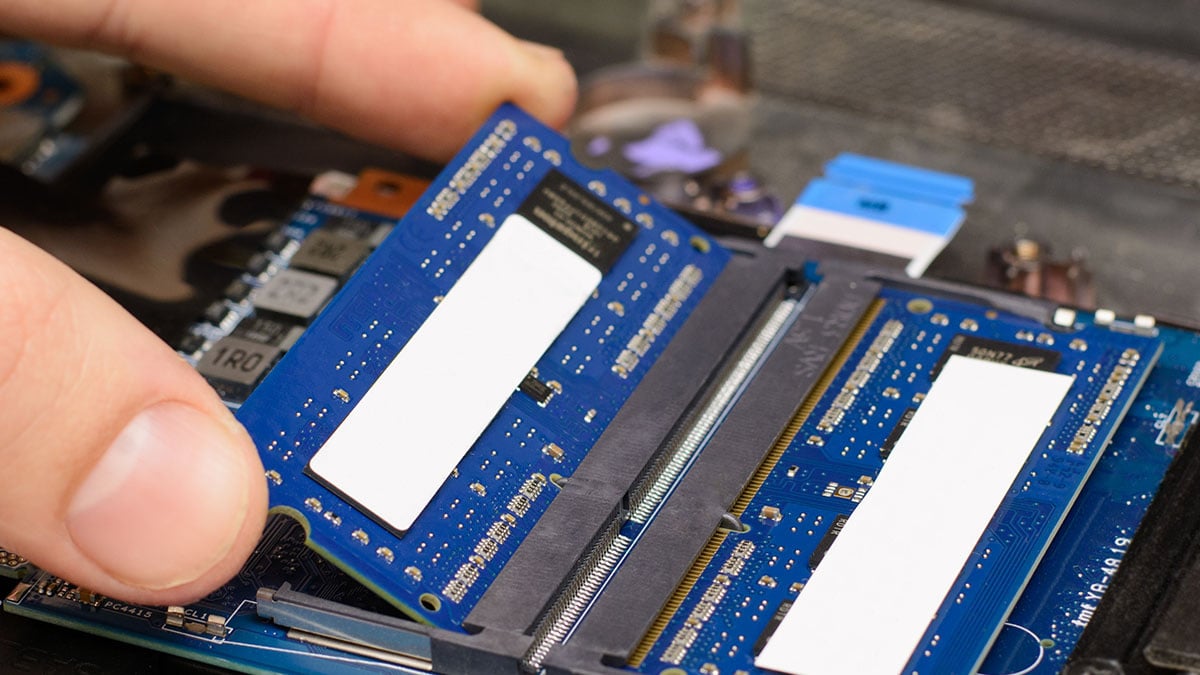
Part 4: When Software Tweaks Aren’t Enough: Affordable Hardware Upgrades
If you have tried all the steps above and your laptop still feels sluggish, the issue isn’t your software – it is simply that modern websites and applications require more power than your aging hardware can supply.
The good news? You still do not need to buy a new laptop. Upgrading two low-cost internal components can make an 8-year-old laptop feel faster than a brand-new machine straight out of the box.
The Impact of Component Upgrades
| Upgrade Component | What It Fixes | Real-World Impact | Estimated Cost (KES) |
| Solid-State Drive (SSD) | Replaces an old Mechanical Hard Drive (HDD) | Boots Windows in 15 seconds instead of 3 minutes; apps open instantly. | KSh 4,500 – KSh 28,000 |
| RAM (Memory) Upgrade | Prevents freezing when multitasking | Allows 20+ browser tabs, Zoom, and Excel to run together smoothly. | KSh 4,000 – KSh 15,500 |
Why an SSD Upgrade is a Complete Game Changer
Traditional HDDs read data at around 100 MB/s. A budget SATA Solid-State Drive reads data at over 500 MB/s, while newer NVMe SSDs can exceed 3,500 MB/s. Swapping an HDD for an SSD is single-handedly the most impactful hardware upgrade you can make for an older machine.
If you are looking for professional laptop repair in Kenya, don’t just walk into any random electronic shop. Seek out recognized computer diagnostic technicians along Kimathi Street or Tom Mboya Street in Nairobi, or equivalent trusted electronic hubs in Mombasa and Kisumu. Ask them to clone your old drive data onto a reliable brand SSD (like Crucial, Kingston, or Samsung) so you don’t lose your operating system license or personal records.
Part 5: Common Optimization Mistakes to Avoid
In your eagerness to make your laptop faster, it is easy to fall into traps that actually cause more harm than good. Avoid these common missteps:
- Avoid “Registry Cleaners” and “PC Boosters”: Software utilities like MacKeeper, system optimization pop-ups, or aggressive registry cleaners are often malicious bloatware in disguise. They run heavy background processes, show fake error messages to scare you into buying premium versions, and can accidentally delete critical operating system registry entries.
- Don’t Run Multiple Antivirus Programs: Running Windows Defender alongside two other third-party antivirus suites (like Avast and McAfee simultaneously) will cause severe system conflicts. They will constantly scan the same system files at the same time, maxing out your CPU and bringing your device to a dead stop. One reliable, active security suite is all you need.
- Never Block Air Intakes: Using your laptop on a soft bed, thick blanket, or carpet blocks the cooling intake vents on the bottom panel. This forces components to overheat within minutes, triggering heavy thermal throttling lag. Always use a hard, flat desk surface or a dedicated laptop stand.
Part 6: Frequently Asked Questions (FAQs)
Q1: Does a slow laptop always mean I have a virus?
No. While malware can cause sluggish performance, the vast majority of slow laptops are simply suffering from full storage drives, background software clutter, or outdated mechanical hard drives. Always check your Task Manager resource usage before panicking about malware.
Q2: Is 8GB of RAM enough in 2026?
For basic office tasks, writing documents, sending emails, and streaming movies, 8GB of RAM is perfectly adequate. However, if your work involves graphic design, video editing, running heavy developer tools, or gaming, you should consider upgrading to 16GB of RAM.
Q3: How much free space should I keep on my C: Drive?
You should always maintain a buffer of at least 15% of your total drive capacity completely free. Windows uses this space for page filing and caching temporary system tasks; filling your drive will cause immediate system errors and heavy lag.
Q4: Can I change the processor (CPU) inside my laptop to make it faster?
In almost all modern laptops, the processor is permanently soldered directly onto the motherboard at the factory. It cannot be upgraded or swapped out. To boost speed, focus on maximizing your storage throughput with an SSD and expanding your RAM capacity.
Q5: How often should I perform system maintenance?
We recommend performing a basic digital cleanup once a month: check for operating system updates, clear your temporary file folder via Storage Sense, and skim through your startup application list to disable new additions. A physical dust cleaning with compressed air should be done every six months.
Conclusion: Protect Your Wallet and Extend Your Laptop’s Lifespan
Before you throw your hands up in frustration and spend your hard-earned income on a costly new computer, try the software optimizations detailed above. By taking control of your startup items, managing background applications, clearing out digital junk, and ensuring your laptop stays cool, you can frequently recover up to 50% of your machine’s lost performance for free.
If software cleanup still leaves you wanting more, remember that investing a small fraction of the cost of a new laptop into an SSD upgrade or additional RAM module can make your trusted device feel incredibly fast once again. Take care of your hardware, keep your operating system lean, and your laptop will continue to serve you reliably for years to come.