
A reliable home office network in Kenya is essential for remote workers, freelancers, entrepreneurs, consultants, and small business owners who depend on stable internet access to work efficiently. Whether you attend online meetings, manage customer orders, transfer large files, print documents, or access cloud applications, the right network setup can improve productivity, security, and reliability.
Building a home office network does not have to be complicated or expensive. With the right router, internet connection, networking equipment, and security settings, you can create a setup that supports your daily work and grows with your business.
Quick Summary
- Choose a reliable internet service provider based on your location and work requirements.
- Invest in a good Wi Fi router that supports your devices and internet speed.
- Use Ethernet cables for desktop computers, printers, and other devices that need stable connections.
- Consider a Wi Fi extender or mesh system if your office has weak wireless coverage.
- Secure your network with a strong password, updated router firmware, and a separate guest network.
- Use a UPS to keep your router and other essential networking equipment running during short power interruptions.
- Back up important business files to protect against accidental deletion, hardware failure, and other data loss.
1. Understand What a Home Office Network Is
A home office network connects your work devices so they can access the internet and, where necessary, communicate with one another. Your network may include:
- A laptop or desktop computer
- A Wi Fi router
- A fibre or fixed wireless internet connection
- A network printer
- Smartphones and tablets
- A network switch
- Ethernet cables
- A Wi Fi extender or mesh system
- External storage or a network-attached storage device
- A UPS for backup power
For example, a freelance designer in Nairobi may use a laptop connected to the internet through fibre, a network printer for documents and an external SSD for project files. A small business owner may need several computers, shared printers and secure access to business applications. The equipment you need depends on the number of users, the size of your home, your internet connection and the type of work you perform.
2. Determine Your Home Office Networking Requirements
Before buying networking equipment, identify what your home office needs to support. Consider the following questions:
- How many people will use the network?
- How many laptops, desktop computers, and smartphones will connect?
- Do you regularly attend video meetings?
- Do you upload or download large files?
- Do you use cloud applications or remote desktop software?
- Do you need to share a printer between multiple computers?
- Does your office have weak Wi Fi coverage?
- Do you need to access business files from other devices?
- Will your network support CCTV cameras or other smart devices?
A basic setup for one remote worker may only require a router, an internet connection, and a laptop. A home-based business with several employees may need additional access points, a network switch, wired connections, and stronger security controls. Planning first helps you avoid spending money on equipment you do not need.
3. Choose a Reliable Internet Connection in Kenya
Your internet connection is the foundation of your home office network. Even the best router cannot compensate for an unreliable internet service. In Kenya, common options include fibre internet, fixed wireless broadband and mobile broadband.
Fibre Internet
Fibre is often an excellent option where available because it can provide high speeds, low latency and reliable performance. It is particularly suitable for:
- Remote workers attending frequent video meetings
- Businesses using cloud-based applications
- Freelancers transferring large files
- Households with several connected devices
- Teams working with shared online documents
Check the installation costs, monthly charges, advertised speeds, fair usage policies and service availability in your area before choosing a provider.
Fixed Wireless Internet
Fixed wireless internet uses radio equipment to connect your premises to an internet service provider. It may be useful in locations where fibre is unavailable. Performance can depend on signal strength, line of sight, network congestion and local conditions. Ask the provider whether your property can receive a reliable signal before paying for installation.
Mobile Broadband
Mobile broadband uses a cellular network through a smartphone, portable MiFi device or compatible 4G or 5G router. It can be useful for people working in rented premises, travelling frequently or operating in areas without fibre coverage. However, performance depends on network coverage, congestion, signal quality, and the data plan. Heavy usage may also become expensive if your plan has limited data.
Practical tip: If your income depends on being online, consider having a backup connection from a different network. For example, you could use fibre as your main connection and a mobile router as a backup when the primary service fails.
4. Choose the Right Wi Fi Router
The router is one of the most important components of your home office network. It directs traffic between your connected devices and the internet while providing wireless connectivity. When choosing a router, consider these factors.
Wi Fi Standard
Modern routers may support Wi Fi 5, Wi Fi 6, Wi Fi 6E or Wi Fi 7. Newer standards can provide improvements in capacity, efficiency, and performance, but your devices must support the relevant features to benefit fully.
Wi Fi 6 is a good option for many home offices with multiple connected devices. Wi Fi 6E and Wi Fi 7 may be worthwhile for users who need newer features and have compatible devices.
Coverage
Choose a router that can cover your working area. Walls, concrete, metal surfaces, furniture, and distance can weaken wireless signals. A router advertised for a large area may not deliver the same coverage in every building.
Device Capacity
If several people use laptops, phones, smart televisions, and other connected devices, choose a router designed to handle multiple simultaneous connections.
Ethernet Ports
Check the number and speed of the Ethernet ports. Wired ports are useful for connecting desktop computers, network switches, and other equipment that benefits from a stable connection.
Security
Look for modern security features, including WPA3 where supported, guest network functionality, firmware updates, and the ability to change default administrator credentials.
Quality of Service
Some routers offer Quality of Service settings that help prioritize selected types of traffic or devices. This can be useful when video meetings compete with large downloads, although the benefits depend on the router and how it is configured.
5. Understand 2.4 GHz, 5 GHz and 6 GHz Wi Fi
Many modern routers support multiple Wi Fi frequency bands. Understanding their differences helps you choose the right connection for each device.
2.4 GHz
The 2.4 GHz band generally offers better range through obstacles in many environments. However, it is often more congested and may deliver lower speeds than newer bands. It can be suitable for basic browsing and devices located farther from the router.
5 GHz
The 5 GHz band can provide higher speeds and may experience less interference than 2.4 GHz. Its range is generally shorter, particularly when signals must pass through thick walls. It is often a good choice for laptops, video meetings, and everyday office work when the signal is strong.
6 GHz
The 6 GHz band provides additional wireless spectrum for compatible devices and can help reduce congestion in supported environments. However, it generally has a shorter practical range and requires compatible routers and client devices.
It may be useful for newer equipment, but it is not essential for every home office. The best frequency band depends on your environment. A laptop near the router may perform well on 5 GHz, while a device in another room may maintain a more reliable connection on 2.4 GHz.
6. Use Ethernet for Important Work Devices
Wi Fi is convenient, but a wired Ethernet connection can offer greater consistency for devices that remain in one location. Consider using Ethernet for:
- Desktop computers
- Workstations handling large files
- Video conferencing computers
- Network storage devices
- Network printers with Ethernet ports
- Devices requiring predictable network performance
A wired connection can reduce interference and avoid some of the performance fluctuations associated with wireless networks. For example, if you frequently attend client meetings and experience interruptions on Wi Fi, connecting your laptop to the router through Ethernet may improve stability.
You will need an Ethernet cable of a suitable length and compatible ports on your computer and router. Many modern laptops do not have built-in Ethernet ports, so a compatible USB to Ethernet adapter may be necessary.
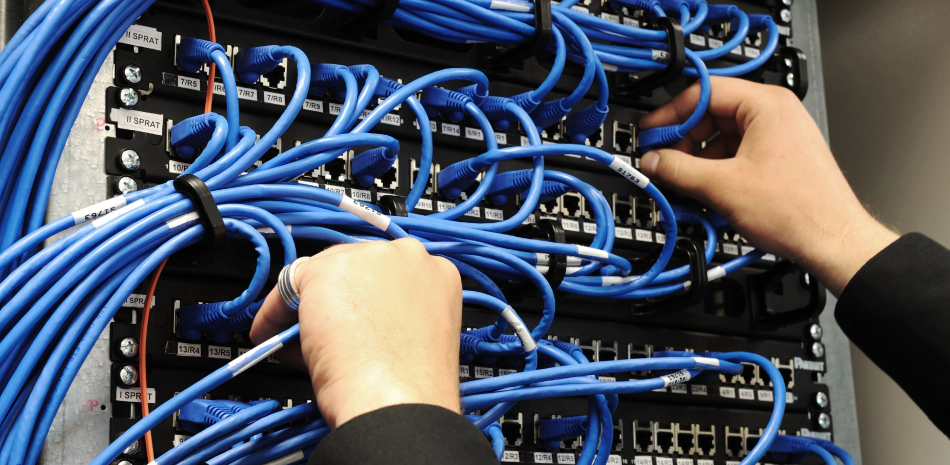
Use Cat 5e or Cat 6 Ethernet cables for most ordinary home office installations. Both can support Gigabit Ethernet at suitable distances when the entire connection is properly installed. Avoid running network cables where they may be crushed, damaged, or create a tripping hazard.
7. Decide Whether You Need a Network Switch
A network switch expands the number of available wired network connections. For example, suppose your router has four available Ethernet ports, but you need to connect six devices using cables. A compatible network switch can provide additional ports. A switch may be useful when your home office has:
- Several desktop computers
- Network printers
- Network-attached storage
- Wireless access points
- Other Ethernet-enabled equipment
An unmanaged switch is usually sufficient for a simple home office. It normally works without complicated configuration. A managed switch provides additional control over network traffic, virtual local area networks, and monitoring. It may be useful for a growing business or an advanced network, but it is not essential for most beginners.
Check the switch port speeds and your router’s available connection speed before buying. A Gigabit switch is a sensible starting point for many small office networks.
8. Position Your Router Correctly
Router placement has a major effect on Wi Fi performance. Even an expensive router may perform poorly if it is hidden behind furniture or placed far from the working area. Follow these guidelines:
- Place the router in a central or reasonably open location.
- Keep it elevated rather than directly on the floor.
- Avoid enclosing it inside a cabinet.
- Keep it away from thick concrete walls where possible.
- Avoid placing it directly beside appliances that may cause interference.
- Keep it away from sources of excessive heat and moisture.
- Position external antennas according to the manufacturer’s guidance.
If your home office is upstairs, a router placed at one end of the ground floor may struggle to provide a strong signal. Moving it to a more central position may improve coverage. Test the connection in the actual places where you work rather than relying only on the signal strength displayed beside the router.
9. Improve Wi Fi Coverage in a Large Home
If the Wi Fi signal is weak in your office, bedroom, or upstairs workspace, you may need additional equipment. There are three common approaches.
Wi Fi Extender
A Wi Fi extender repeats an existing wireless signal to help cover an area with weak reception. It can be an affordable solution for a small dead zone. However, performance depends on the quality of the original signal, the extender, and how it handles wireless traffic.
Place the extender where it still receives a strong signal from the main router, rather than in the area where the signal has already disappeared.
Mesh Wi Fi System
A mesh system uses multiple units to provide wireless coverage across a larger area. It may be suitable for:
- Large houses
- Multi-storey homes
- Home offices separated from the main router
- Properties with several rooms and difficult layouts
Mesh systems can make it easier to maintain a consistent network name as you move around the property. Actual performance depends on placement, backhaul quality, and the equipment used.
Additional Wired Access Point
A wireless access point connected to the main network through Ethernet can provide strong coverage in another part of the building. This is often an excellent option when you can install a network cable between the router and the additional access point.
Which should you choose? An extender may be enough for a small coverage problem. A mesh system is useful for broader coverage, while a wired access point can provide strong performance when suitable cabling is available.
10. Connect Your Printer to the Network
A network printer allows multiple computers to print without requiring every user to connect directly to the printer through a separate USB cable. Depending on the printer model, you can connect it through Wi Fi, Ethernet, or USB. For a small home office, a Wi Fi printer may be convenient because it can be placed where printing is easiest.
An Ethernet-connected printer can be a good option when the printer remains in one location and reliable network access is important. After connecting the printer:
- Connect it to the correct Wi Fi network or Ethernet port.
- Install the appropriate printer driver or software on your computer.
- Add the printer through your operating system’s printer settings.
- Print a test page.
- Confirm that other authorized devices can access it if sharing is required.
If the printer does not appear on your computer, confirm that both devices are connected to the correct network. Guest networks and wireless client isolation settings can prevent devices from communicating with one another.
11. Secure Your Home Office Network
Network security is essential when your home office handles customer information, business records, invoices, or confidential documents. An unsecured router can expose your internet connection and connected devices to unnecessary risks.
Change the Default Administrator Password
The router administrator password controls access to its configuration settings. Change the default credentials and use a strong, unique password. Where supported, enable multi-factor authentication for remote administration or the associated router account.
Use Strong Wi Fi Encryption
Choose WPA3 where supported by your router and devices. WPA2 with AES remains a common alternative for equipment that does not support WPA3. Avoid outdated security modes such as WEP.
Set a Strong Wi Fi Password
Use a long password that is difficult to guess. Do not use easily identifiable information such as your business name, phone number or simple number sequences.
Update Router Firmware
Firmware updates can fix security vulnerabilities and improve reliability. Check for updates through the manufacturer’s official management interface or application. Enable automatic updates if the router supports them and you are comfortable with how they are applied.
Disable Unnecessary Remote Administration
If you do not need to manage your router from outside your home, disable remote administration. This reduces unnecessary exposure of the router’s management interface.
Keep Work Devices Updated
Install operating system and application updates on laptops, desktop computers, and other connected equipment. Use reputable security software and enable device encryption where available and appropriate.
12. Create a Separate Guest Network
A guest network allows visitors to use your internet connection without giving them the same level of access as your main network. This is useful if you work from home and occasionally receive clients, contractors, or visitors. A guest network can also be useful for compatible smart devices that do not need access to your business computers. When configuring it:
- Use a separate network name and password.
- Enable guest isolation if available.
- Prevent guests from accessing local network devices where appropriate.
- Disable unnecessary access to your router’s administration settings.
- Change the guest password when access should no longer be available.
Some routers offer separate networks for smart home devices or Internet of Things equipment. These features can improve separation between less trusted devices and computers containing sensitive business information. Remember that a guest network is not automatically a complete security solution. Its protection depends on the router’s implementation and configuration.
13. Protect Your Business Files and Shared Devices
A reliable network does not automatically protect your files from deletion, hardware failure, ransomware, or theft. Create a backup strategy for important business documents, customer records, accounting files, photographs and project data.
A practical approach is to maintain:
- Working files on your computer.
- A separate backup on an external hard drive or SSD.
- An additional backup in a secure cloud service or another separate location.
For especially important data, consider the 3-2-1 backup approach: keep three copies of the data, use two different storage types and store one copy off-site. A network-attached storage device can provide centralized storage for multiple users, but it should be configured securely and backed up separately. A NAS device is not a complete backup strategy by itself.
If you store sensitive business information, use appropriate access permissions and encryption. Avoid exposing file sharing services directly to the public internet.
14. Consider a UPS for Your Networking Equipment
Power interruptions can disconnect your home office from the internet, interrupt meetings, and disrupt work. A UPS, or uninterruptible power supply, provides temporary battery power to compatible equipment when mains electricity fails. Depending on its capacity and the power consumption of your devices, a UPS may keep the following running for a limited period:
- Router
- Fibre ONT or modem
- Network switch
- Wireless access point
- Desktop computer or other essential equipment
For many home offices, keeping the router and fibre ONT powered is a useful starting point. This may allow your internet connection to continue working during a short power interruption, provided the internet service provider’s own equipment and network remain operational.
A UPS does not guarantee internet availability during a power outage. The provider’s equipment, local network and other infrastructure must also remain operational. Check the UPS capacity, expected runtime, output rating, and battery replacement requirements before purchasing.
15. Set Up a Reliable Home Office for Video Meetings
Video meetings depend on more than the internet speed advertised by your provider. Latency, packet loss, Wi Fi interference and network congestion can also affect call quality. To improve meeting reliability:
- Connect your computer through Ethernet where practical.
- Use a stable Wi Fi connection if Ethernet is unavailable.
- Position yourself close enough to the router for a strong signal.
- Pause large downloads during important meetings.
- Close unnecessary applications that consume bandwidth.
- Update your video conferencing application.
- Test your microphone, camera, and internet connection before important calls.
- Use a backup internet connection if your work cannot tolerate long interruptions.
If several people in your home stream videos while you conduct a meeting, your router may need to manage competing traffic. Quality of Service features can help on some routers, but they do not increase the internet capacity supplied by your provider.
16. Understand the Internet Speed Your Home Office Needs
The right internet speed depends on how many people use the connection and what they do online. The following are practical considerations when choosing a package.
Email, Browsing and Online Documents
Basic office activities usually require less bandwidth than high-quality video calls or large file transfers. A reliable connection is often more important than paying for the highest available speed.
Regular Video Meetings
Video calls need stable upload and download speeds. If you regularly participate in meetings, prioritize reliability and low packet loss, not just the advertised download speed.
Multiple Remote Workers
If several people attend meetings, download files, or use cloud applications at the same time, choose a package with enough capacity for simultaneous activity.
Large File Transfers
Freelancers, designers, photographers, and video editors may need higher upload and download speeds to transfer large project files efficiently.
Cloud Backups
Upload speed is particularly important when backing up large quantities of business data to cloud storage. A connection with fast downloads but limited upload capacity may take a long time to complete backups.
Before upgrading your internet package, test your connection at different times of day. If speeds vary significantly, the problem may involve network congestion, Wi Fi interference, your router, or the service provider.
17. Troubleshoot Common Home Office Network Problems
Network problems can interrupt your work, but many common issues can be diagnosed with a few simple checks.
Slow Internet
Possible causes include network congestion, weak Wi Fi, background downloads, or an internet package with insufficient capacity. Test your connection through Ethernet if possible. Compare the results at different times and check whether other devices are consuming bandwidth.
Weak Wi Fi Signal
The router may be too far from your working area or separated by thick walls and other obstacles. Move the router to a more central location or consider a suitable access point or mesh system.
Frequent Disconnections
Interference, damaged cables, overheating, or router problems can cause interruptions. Check the connections, ensure that the router has adequate ventilation, and install available firmware updates. If the problem persists, contact your internet provider.
Printer Not Detected
Your printer and computer may be connected to different networks, or the printer may be offline. Confirm the printer’s network connection, check the computer’s printer settings, and ensure that guest network restrictions are not blocking communication.
Video Calls Keep Freezing
Packet loss, congestion, and unstable Wi Fi can interrupt calls. Try Ethernet, reduce competing traffic, and test the connection again. If several devices experience the same problem, investigate the router or internet service.
No Internet After a Power Interruption
Your router, modem or fibre ONT may not have reconnected properly. Check the power indicators and follow the manufacturer’s instructions for restarting the equipment. If the internet connection remains unavailable, contact your provider.
How to Troubleshoot a Slow Connection
Start by checking whether the problem affects one device or every device. If only one computer is affected, check its Wi Fi connection, network adapter, background applications, and software updates. If all devices are slow, restart the router and modem or ONT according to the manufacturer’s instructions. Test the connection through Ethernet if possible.
Run a speed test while connected directly to the router and compare the result with the service package you purchased. For the fairest comparison, stop unnecessary downloads and avoid testing while many other devices are using the connection. If the connection remains poor, contact your internet provider with the results and the times when the problem occurs.
18. Plan for Network Growth
Your home office network may need to support more devices as your business grows. A setup that works for one person may become inadequate when you add employees, printers, cameras, storage devices, or a second working area. When choosing equipment, consider:
- The number of Ethernet ports you may need.
- Whether your router supports your expected number of devices.
- Whether you can add a network switch.
- Whether additional access points can be connected.
- Whether your internet plan can support more simultaneous users.
- Whether your router receives security updates.
- Whether your network needs separate access for guests and business devices.
Avoid buying the most expensive equipment simply because it has the highest specifications. Choose equipment that meets your present requirements while leaving reasonable room for expansion.
19. A Practical Home Office Network Setup
Here is an example of a straightforward setup for a Kenyan remote worker or small business owner.
1. Fibre ONT or Modem
This equipment receives the internet connection from your service provider. For a fibre connection, the ONT converts the optical signal into a connection that your router can use.
2. Wi Fi Router
The router distributes the internet connection to wireless and wired devices. Choose one with suitable coverage, security features and enough ports for your requirements.
3. Ethernet Cables
Use Cat 5e or Cat 6 Ethernet cables to connect stationary devices such as desktop computers and compatible printers. Wired connections can provide more consistent performance than Wi Fi in challenging environments.
4. Network Printer
A network printer allows compatible computers to print without connecting each computer directly through USB. Choose a printer that supports the connection options your home office needs.
5. UPS
A UPS provides temporary backup power for essential networking equipment. It can help keep your router and fibre ONT powered during short interruptions, subject to the availability of the provider’s network.
6. Optional Network Switch
If you need more wired ports than your router provides, add an unmanaged Gigabit Ethernet switch. This is especially useful when several devices need stable wired connections.
7. Optional Mesh System or Access Point
If your home has Wi Fi dead zones, consider a mesh system or a wired access point to improve coverage in distant rooms. For a small home office, you may not need every item immediately. Start with a reliable internet connection and router, then add wired connections, improved Wi Fi coverage, or backup power when your requirements justify them.
20. Home Office Network Buying Checklist
Use this checklist before purchasing networking equipment.
Frequently Asked Questions
Can I Build a Home Office Network Without Technical Knowledge?
Yes. A basic setup involving an internet connection, router, laptop, and Wi Fi printer is manageable for most beginners. More advanced requirements, such as virtual local area network configuration, structured cabling, or complex business security, may require professional assistance.
Is a Wi Fi Router Enough for a Home Office?
For many people, yes. A router may be all you need if your home is relatively small and your internet connection is reliable. Larger homes or offices with several wired devices may benefit from additional equipment.
Should I Use Wi Fi or Ethernet for Working from Home?
Both can work well. Wi Fi provides convenience, while Ethernet usually offers more consistent performance for stationary devices. Use Ethernet for your main workstation where practical, especially if you experience wireless interference.
How Much Should I Spend on a Home Office Network in Kenya?
The cost depends on the equipment, internet provider, coverage requirements, and number of devices. A basic setup may require only a router and internet service, while larger homes may need a mesh system, access points, switches, and backup power. Compare equipment based on its features, warranty, compatibility, and suitability for your requirements rather than choosing solely by price.
Do I Need a Separate Internet Connection for My Home Office?
Not necessarily. Many people can work effectively using the same internet connection as the rest of the household. If you experience congestion, consider a suitable internet package, router traffic management, or a separate connection if your work requirements justify the additional cost.
How Can I Protect My Home Office Network from Hackers?
Use strong, unique passwords, modern Wi Fi encryption, updated router firmware, and secure devices. Disable unnecessary remote administration, configure guest access appropriately, and back up important business files. Avoid exposing network storage or remote access services directly to the internet without suitable security controls.
What Is the Best Backup Internet Option in Kenya?
The best option depends on the networks available at your location. A mobile broadband router can be a practical backup for a fibre connection, particularly when it uses a different network provider. Test the backup connection before relying on it for important work.
Thoughts
Building a reliable home office network in Kenya starts with understanding your needs and choosing equipment that supports the way you work. A stable internet connection, a suitable router, secure configuration, and correct placement will solve many common problems before they affect your productivity.
As your requirements grow, you can add Ethernet connections, a network switch, a mesh Wi Fi system, shared printing, backup storage, and a UPS. Prioritize reliability and security over unnecessary features, and test your network regularly to identify problems early.
For laptops, routers, networking equipment, Ethernet cables, storage devices, printers, and other home office technology products, contact Vinarq Solutions for help choosing equipment that matches your requirements and budget.
Contact Vinarq Solutions
WhatsApp / Phone: 0745108788
Email: info@vinarq.co.ke